Special Subroutines
NeoFM/FTP provides several optional subroutines that can be used by VisualNEO Win authors to override or customize many of its core features. There are two types of subroutines - connection-specific and generic. Connection-specific subroutines are used to respond to events that affect a specific connection or a connection's file browser. Generic subroutines are used to respond to events that involve more than one connection or file browser.
NOTE: Subroutines are considered an advanced VisualNEO Win feature, so inexperienced users should exercise caution before using them. For more information about subroutines, please consult your VisualNEO Win help file.
All of the subroutines described here are optional and can be implemented when needed or ignored when not needed. If NeoFM/FTP detects that a particular subroutine exists, it will execute it in favor of its normal built-in behavior. For example, normally when a file is about to be overwritten, NeoFM/FTP will display a dialog box* like the one below giving the user a chance to OK or cancel the action:
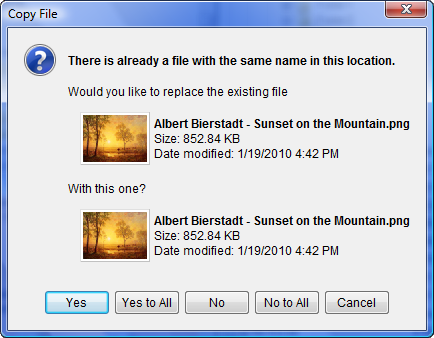
However, if your publication contains a subroutine called "FMFTP_ConfirmOverwrite", then NeoFM/FTP will execute that instead of displaying the dialog box. The subroutine could be used to display your own custom dialog box using VisualNEO Win's CustomWindow action or you could use some other method to determine whether a file should be overwritten. If you decide to use any of these custom subroutines or to disable confirmation dialogs, it is your responsibility to insure that important files are not overwritten, deleted or otherwise destroyed. Most Windows file actions cannot be undone.
*Most NeoFM/FTP actions, such as fmCopySelected, offer options to disable the display of confirmation dialogs like this one.
The different types of subroutines supported by NeoFM/FTP are described below:
Connection-Specific Subroutines
The descriptive labels (or names) used for connection-specific subroutines are a combination of the Connection ID, an underscore (_) followed by a special keyword. Below are a list of connection-specific subroutines supported by NeoFM/FTP. (Replace "ID" in the names below with your Connection ID.)
Subroutine Name: |
ID_SelectionChanged |
||
Triggered By: |
Any event that changes the number of selected items for a connection. This can be triggered by the user clicking an item in a file browser; changes to the current directory or any action that alters the selection count such as fmSelectAll, fmMoveSelected, fmDeleteSelected, etc. |
||
Variables Affected: |
|
||
Example: |
The following example enables or disables several Push Buttons based on the number of selected items in FileList1: :FileList1_SelectionChanged If "[FileList1.SelCount]" ">" "0" .One or more items is selected EnableObject "CopyBtn" EnableObject "MoveBtn" EnableObject "RenameBtn" EnableObject "RecycleBtn" EnableObject "DeleteBtn" Else .Nothing is selected DisableObject "CopyBtn" DisableObject "MoveBtn" DisableObject "RenameBtn" DisableObject "RecycleBtn" DisableObject "DeleteBtn" EndIf Return |
Subroutine Name: |
ID_DirectoryChanged |
||||||
Triggered By: |
Changes to the connection's current directory. This can be triggered by a user double clicking on a folder in a file browser or the fmChangeDir action. |
||||||
Variables Affected: |
|
||||||
Example: |
The following example, updates a Simple Text object whenever the FileList1's current directory changes: :FileList1_DirectoryChanged SetObjectCaption "Text1" "[FileList1.CurrentDir]" Return |
Subroutine Name: |
ID_SortChanged |
||
Triggered By: |
Changing the connection's sort method by clicking on the list view's header. Note: This subroutine is NOT triggered when the sort method is changed programmatically using the fmSetSortMethod action. |
||
Variables Affected: |
|
||
Example: |
The following example updates a combo box and radio button group to reflect the new sort settings: :FileList1_SortChanged fmGetSortMethod "[FMFTP.ActiveClient]" "[ComboBox1]" "[RadioGroup1]" Return |
Subroutine Name: |
ID_RightClick |
||||
Triggered By: |
A right mouse button click on an item in the list view portion of a file browser. |
||||
Variables Affected: |
|
||||
Example: |
The following example displays the Windows properties dialog box for the clicked item: :FileList1_RightClick fmShowFilePropertiesDlg "[FMFTP.EventSourceFile]" Return |
Subroutine Name: |
ID_DoubleClick |
||||
Triggered By: |
A double click on an item in the list view portion of a file browser. |
||||
Variables Affected: |
|
||||
Example: |
The following example loads the application associated with the double clicked file: :FileList1_DoubleClick Run "[FMFTP.EventSourceFile]" "" "Normal" "" "" Return |
Generic Subroutines
The descriptive labels (or names) used for generic subroutines are a combination of "FMFTP", an underscore (_) followed by a special keyword. Below are a list of generic subroutines supported by NeoFM/FTP.
Subroutine Name: |
FMFTP_FocusChanged |
||
Triggered By: |
Any event that causes a file browser to become active or inactive. This can occur when the user clicks on another file browser, navigates to a different page, etc. This subroutine can be used to enable or disable buttons or menu items that rely on the active file browser. |
||
Variables Affected: |
|
||
Example: |
:FMFTP_FocusChanged If "[FMFTP.ActiveClient]" ">" "" If "[[FMFTP.ActiveClient].SelCount]" ">" "0" .One or more items is selected EnableObject "CopyBtn" EnableObject "MoveBtn" EnableObject "RenameBtn" EnableObject "RecycleBtn" EnableObject "DeleteBtn" Else .Nothing is selected DisableObject "CopyBtn" DisableObject "MoveBtn" DisableObject "RenameBtn" DisableObject "RecycleBtn" DisableObject "DeleteBtn" EndIf Else .No file browser is active DisableObject "CopyBtn" DisableObject "MoveBtn" DisableObject "RenameBtn" DisableObject "RecycleBtn" DisableObject "DeleteBtn" EndIf Return |
Subroutine Name: |
FMFTP_Error |
||
Triggered By: |
Any NeoFM/FTP error. Note: The fmShowErrors action can be used to disable the display of all NeoFM/FTP error messages. When fmShowErrors is off, the FMFTP_Error subroutine will not be executed. |
||
Variables Affected: |
|
||
Example: |
:FMFTP_Error AlertBox "Whoops!" "The following error has occurred:||[FMFTP.Error]" Return |
Subroutine Name: |
FMFTP_ConfirmOverwrite |
||||||||||||||||||||||||
Triggered By: |
Any copy or move operation that will result in an existing file or folder being overwritten. Note: Most NeoFM/FTP actions, such as fmCopySelected, offer options to disable both the default confirmation dialog and the FMFTP_ConfirmOverwrite action. |
||||||||||||||||||||||||
Variables Affected: |
|
||||||||||||||||||||||||
Example: |
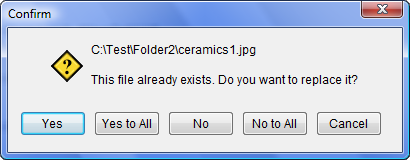
The following example, displays a VisualNEO Win message box asking the user if it's OK to overwrite an existing file: :FMFTP_ConfirmOverwrite MessageBox "Confirm" "[FMFTP.EventDestFile]||This file already exists. Do you want to replace it?" "Yes|Yes to All|No|No to All|Cancel" "[Result]" If "[Result]" "=" "1" SetVar "[FMFTP.EventResult]" "Yes" EndIf If "[Result]" "=" "2" SetVar "[FMFTP.EventResult]" "YesToAll" EndIf If "[Result]" "=" "3" SetVar "[FMFTP.EventResult]" "No" EndIf If "[Result]" "=" "4" SetVar "[FMFTP.EventResult]" "NoToAll" EndIf Return
|


Subroutine Name: |
FMFTP_CopyConflict |
||||||||||||||||||
Triggered By: |
An invalid copy or move operation, such as attempting to copy a folder onto a file. |
||||||||||||||||||
Variables Affected: |
|
||||||||||||||||||
Example: |
The following example, displays a VisualNEO Win message box alerting the user about a copy conflict: :FMFTP_CopyConflict MessageBox "Error" "[FMFTP.EventMessage]" "Skip|Cancel" "[Result]" If "[Result]" "=" "1" SetVar "[FMFTP.EventResult]" "Skip" EndIf Return |

Subroutine Name: |
FMFTP_DropFile |
||||||||||||||||||
Triggered By: |
Files being dragged and dropped onto a file browser. The destination is always a NeoFM/FTP-owned file browser. The source can be either another file browser or an external application. |
||||||||||||||||||
Variables Affected: |
|
||||||||||||||||||
Example: |
:FMFTP_DropFile MessageBox "Confirm Drop" "Do you want to drop the following items:||[FMFTP.EventSourceFile]||Here:||[FMFTP.EventDestFile]" "Yes|No" "[Result]" If "[Result]" "<>" "1" SetVar "[FMFTP.EventResult]" "Cancel" EndIf Return |


The following subroutines are provided for VisualNEO Win authors who want to substitute their own custom progress bar in place of the one built-into NeoFM/FTP. Overriding the built-in progress bar can be fairly complicated, so we recommend that you take a look at a sample pub included with NeoFM/FTP called "Advanced File Manager" to see how these subroutines are actually used.
Subroutine Name: |
FMFTP_ProgressStart |
||||||||
Triggered By: |
Any action that requires a progress bar. This is the first of the progress subroutines to be executed. If you want to display your own custom progress bar this is where it should be done. IMPORTANT: If you're using a CustomWindow for your progress bar, you should not use the "Exclusive" option as it will interfere with the file processing being performed by NeoFM/FTP. |
||||||||
Variables Affected: |
|
||||||||
Example: |
:FMFTP_ProgressStart .display our custom progress dialog CustomWindow "[FMFTP.ProgressCaption]" "-1" "-1" "ProgressDialog" "ToolWindow+NoCloseBtn" Return |

Subroutine Name: |
FMFTP_ProgressUpdate |
||||||||
Triggered By: |
Processing of items during any operation that requests a progress bar. This subroutine will be executed once for each item processed. |
||||||||
Variables Affected: |
|
||||||||
Example: |
:FMFTP_ProgressUpdate .update our faux progress bar GetObjectInfo "ProgressContainer" "Width" "[PBWidth]" SizeObject "ProgressGraph" "Round([FMFTP.ProgressCount]*([PBWidth] / [FMFTP.ProgressMax]))" "-1" Return |

Subroutine Name: |
FMFTP_ProgressEnd |
Triggered By: |
The completion of the operation that requested the progress bar. This subroutine should always be paired with a matching FMFTP_ProgressStart subroutine. For example, if you displayed a custom window in FMFTP_ProgressStart, then you should close it here. |
Variables Affected: |
None |
Example: |
:FMFTP_ProgressEnd .close our custom progress dialog CloseCustomWindow "ProgressDialog" Return |
Subroutine Name: |
FMFTP_FileProgressStart |
||||
Triggered By: |
Copying a file. This subroutine can be used to provide an extra level of detail to your progress feedback by showing the size and bytes remaining when copying files. Must be used with FMFTP_ProgressStart. |
||||
Variables Affected: |
|
||||
Example: |
:FMFTP_FileProgressStart .initialize our faux file progress bar SizeObject "FileProgressGraph" "0" "-1" GetObjectInfo "FileProgressBar" "Width" "[FPBWidth]" ShowObject "FileProgressBar" "None" "0" Return |
Subroutine Name: |
FMFTP_FileProgressUpdate |
||||
Triggered By: |
Processing of data during a file copy. This subroutine can be executed several times during the copy depending on the size of the file. The version of Windows and available RAM also influence how many times this subroutine is executed. |
||||
Variables Affected: |
|
||||
Example: |
:FMFTP_FileProgressUpdate .update our faux file progress bar SizeObject "FileProgressGraph" "Round([FMFTP.ProgressFileBytesCopied]*([FPBWidth] / [FMFTP.ProgressFileSize]))" "-1" Return |

Subroutine Name: |
FMFTP_FileProgressEnd |
Triggered By: |
The completion of the file copy. This subroutine should always be paired with a matching FMFTP_FileProgressStart subroutine. |
Variables Affected: |
None |
Example: |
:FMFTP_FileProgressEnd .hide our file progress bar HideObject "FileProgressBar" "None" "0" Return |
 Indicates variable can be modified. All other variables should be considered read-only.